1. Introduction to GitLab CI/CD
GitLab CI/CD is a built-in feature of GitLab that automates the building, testing, and deployment of applications. Whenever changes are pushed to a Git repository, GitLab can trigger an automated sequence of tasks—known as a pipeline—to validate the code and ensure it meets quality standards before it ever reaches a staging or production server.
DevOps teams rely on GitLab CI/CD because it establishes a repeatable, auditable software delivery process. Automation eliminates human errors such as forgetting to run unit tests, missing an environment configuration step, or deploying outdated binaries. It also provides immediate feedback: instead of discovering a defect days after merging code, developers learn within minutes whether their changes broke existing functionality.
At its core, GitLab CI/CD links your source code to automated execution environments:
- Git Repository: Houses the application code and the pipeline definition file (
.gitlab-ci.yml). - Pipelines: The top-level engine that triggers whenever code events (like commits, merges, or tags) occur.
- Jobs and Stages: Individual units of work (such as compiling code or running a linter) structured into chronological phases.
- Runners: Independent agents that pick up these jobs and execute them inside isolated operating systems or containers.
2. Understanding the Basics of CI/CD
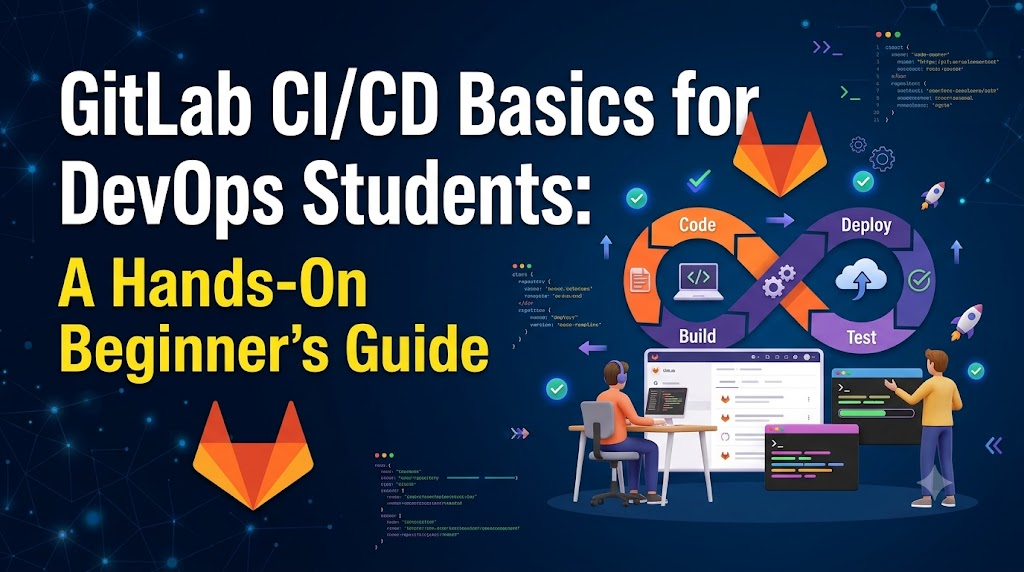
Before writing configuration files, it helps to dissect the acronyms that define modern release engineering: Continuous Integration, Continuous Delivery, and Continuous Deployment. While closely related, they represent distinct milestones in the DevOps lifecycle.
+--------------------------------------------------------------------------+
|                        CONTINUOUS INTEGRATION (CI)                       |
|  [ Developer Commit ] ---> [ Automated Build ] ---> [ Automated Tests ]  |
+--------------------------------------------------------------------------+
                                     |
                                     v
+--------------------------------------------------------------------------+
|                        CONTINUOUS DELIVERY (CD)                          |
|  [ Package Artifacts ] ---> [ Staging Deploy ] ---> [ Manual Approval ]  |
+--------------------------------------------------------------------------+
                                     |
                                     v
+--------------------------------------------------------------------------+
|                       CONTINUOUS DEPLOYMENT (CD)                         |
|            [ Fully Automated Deployment to Production ]                  |
+--------------------------------------------------------------------------+
Continuous Integration (CI)
Continuous Integration is the practice of frequently merging code changes into a central repository, usually multiple times a day. Each merge or push triggers an automated build and test sequence.
The primary goal of CI is early bug detection. If two developers introduce conflicting changes or a new library breaks an existing unit test, the pipeline flags the issue immediately, isolating the problem while the context is fresh in the engineer’s mind.
Continuous Delivery (CD)
Continuous Delivery picks up where CI ends. Once code passes all automated tests, Continuous Delivery ensures that the application is automatically packaged, configured, and staged so that it is always in a release-ready state.
In a Continuous Delivery workflow, deploying to production requires an explicit human decision—such as clicking a “Deploy” button or approving a release ticket. This model is common in enterprises with scheduled release windows, strict compliance audits, or business-driven rollout timelines.
Continuous Deployment (CD)
Continuous Deployment removes the manual intervention step entirely. Every change that passes the complete battery of automated tests and validation stages flows directly and automatically into the production environment.
This model demands an exceptionally mature test suite, comprehensive automated monitoring, and reliable rollback mechanisms. It is widely adopted by high-velocity cloud companies that deploy updates dozens or hundreds of times per day.
How CI/CD Fits into the DevOps Lifecycle
In a traditional lifecycle, development and operations operate in silos. Developers write software over weeks or months and hand it off to operations teams to manually deploy, leading to friction and delayed troubleshooting.
CI/CD bridges this gap. When a developer pushes a commit:
- GitLab detects the Git push event via webhooks.
- The CI pipeline compiles the source code and runs unit, integration, and security scans.
- If any test fails, the pipeline halts, alerting the developer via notifications and inline merge request warnings.
- If all tests pass, the CD stage builds container images or deployment bundles.
- The application is deployed to test or production servers automatically or upon approval.
3. What Is GitLab CI/CD and How Does It Work?
GitLab CI/CD functions as a coordinated ecosystem composed of several distinct components. Understanding how these pieces communicate makes writing configurations and debugging failures straightforward.
GitLab Projects and Repositories
Your project repository on GitLab serves as the single source of truth. It stores your application source code, configuration files, documentation, and your CI/CD configuration.
The .gitlab-ci.yml Configuration File
The entire CI/CD pipeline is managed as code using a YAML file named .gitlab-ci.yml, placed in the root directory of your repository. This file defines:
- Which stages the pipeline contains.
- What commands run for each job.
- What conditions dictate when a job runs (branches, tags, merge requests).
- Which container images or environments are required.
Because this configuration lives inside your Git repository alongside your code, it is version-controlled, auditable, and branches can modify pipeline behaviors independently.
Pipelines, Stages, and Jobs
- Job: The smallest building block of a pipeline. It defines a specific task, such as compiling code, running a test suite, or pushing an artifact. A job specifies the commands to execute (
script). - Stage: A logical grouping of jobs that run at the same time. Common stages include
build,test, anddeploy. - Pipeline: The overarching structure that ties stages together. By default, stages execute sequentially: jobs in the
teststage will not run until all jobs in thebuildstage finish successfully. If any job in an earlier stage fails, the pipeline terminates early to prevent bad code from moving downstream.
GitLab Runners and Executors
GitLab itself (the web interface and Git server) does not run your test commands or build your software. Instead, it delegates those workloads to independent processes called GitLab Runners.
A runner is an agent installed on a virtual machine, bare-metal server, or container cluster. When a pipeline is created, GitLab assigns jobs to available runners. The runner uses an executor—such as a Docker engine, a Kubernetes pod, or a local Shell environment—to provision an execution context, run the declared commands, capture the output, and send the result back to GitLab.
Artifacts, Caches, and Job Logs
- Job Logs: The real-time console terminal output generated by the runner during command execution. These logs are vital for diagnosing syntax errors, missing packages, or assertion failures.
- Artifacts: Files or directories generated by a job (such as a compiled binary, a code coverage report, or a
.ziparchive) that are preserved and uploaded back to GitLab. Other jobs in subsequent stages can download these artifacts to continue the workflow. - Cache: A performance-optimization tool that stores project dependencies (like
node_modulesorpippackages) between pipeline runs, eliminating the need to download large external libraries every time.
Environment Variables and Deployment Environments
CI/CD processes frequently require configuration values, API endpoints, and authentication credentials. Rather than hardcoding these into scripts, GitLab provides CI/CD Variables that inject values dynamically into the runner’s runtime environment.
GitLab also features Environments, allowing you to track deployments across multiple tiers (such as development, staging, and production) directly from the web interface.
4. Setting Up a Beginner-Friendly GitLab CI/CD Project
Getting started requires no specialized infrastructure if you use GitLab’s hosted environment. Here is how to configure a starter project from scratch:
Step 1: Create a GitLab Account and Project
- Log in to GitLab.com (or your educational institution’s self-hosted instance).
- Click New project / repository on your dashboard.
- Select Create blank project.
- Name your project (e.g.,
devops-cicd-starter), set its visibility level to Private or Public, ensure Initialize repository with a README is checked, and click Create project.
Step 2: Understand Runner Availability
Before a pipeline can run, your project must have access to a runner. On GitLab.com, projects generally have access to Shared Runners (also called GitLab-hosted runners) within free-tier compute quota limits.
If you are using a self-hosted GitLab instance managed by a university or company, administrators may have already configured shared runners for you. You can verify runner access by navigating to Settings > CI/CD > Runners in your project sidebar. If shared runners are enabled, you are ready to build pipelines. If not, a project runner must be registered on an accessible machine.
Step 3: Create the Pipeline Configuration
- In your project repository view, click the + (plus) icon next to the branch selector and choose New file.
- Set the file name to
.gitlab-ci.yml. - Paste in your pipeline configuration (detailed in the next section).
- Enter a descriptive commit message, such as
ci: add initial pipeline configuration. - Ensure the target branch is your default branch (
main) and click Commit changes.
Step 4: Monitor the Execution
Once committed, GitLab automatically detects the file and starts the pipeline:
- Navigate to Build > Pipelines in the left sidebar.
- You will see a newly triggered pipeline marked with a status icon (e.g.,
running,passed, orfailed). - Click on the pipeline ID or status badge to open the graphical pipeline visualizer.
- Click on an individual job (such as
build-job) to open the live terminal log and watch the runner execute your commands.
5. Creating Your First GitLab CI/CD Pipeline
Let’s inspect a complete, working .gitlab-ci.yml file designed for a beginner. This example defines a lightweight Node.js project pipeline with three sequential stages: build, test, and deploy.
YAML
# Define the base Docker image used by default for all jobs
image: node:18-alpine

# Define the sequential stages of the pipeline
stages:
  - build
  - test
  - deploy

# Job 1: Compile or package the application
compile_code:
  stage: build
  script:
    - echo "=== Starting Build Stage ==="
    - node -v
    - npm -v
    - echo "Packaging application assets..."
    - mkdir -p dist
    - echo "console.log('App initialized successfully');" > dist/bundle.js
    - echo "Build completed successfully."
  artifacts:
    paths:
      - dist/
    expire_in: 1 hour

# Job 2: Execute automated tests against the build output
run_unit_tests:
  stage: test
  script:
    - echo "=== Starting Test Stage ==="
    - test -f dist/bundle.js
    - echo "Running unit tests..."
    - node dist/bundle.js
    - echo "All tests passed cleanly."

# Job 3: Execute a simulated deployment
simulate_deployment:
  stage: deploy
  script:
    - echo "=== Starting Deployment Stage ==="
    - echo "Deploying bundle to staging server..."
    - cat dist/bundle.js
    - echo "Deployment verified."
  rules:
    - if: '$CI_COMMIT_BRANCH == "main"'
Dissecting the Configuration File
image
The top-level image keyword instructs the runner’s Docker executor to pull a specific container image from Docker Hub (node:18-alpine in this case). Every job runs inside a clean, fresh instance of this lightweight Linux environment, ensuring tools like node and npm are pre-installed.
stages
The stages array defines the execution order. Here, all jobs belonging to the build stage run first. Once they succeed, the pipeline advances to test. When tests pass, it proceeds to deploy.
Job Names (compile_code, run_unit_tests, simulate_deployment)
These are human-readable identifiers that appear as interactive nodes in the GitLab web interface. You can name jobs anything descriptive, though using snake_case or lowercase hyphens is standard practice.
stage
Inside each job block, the stage keyword maps that job to one of the entries declared in the global stages list. If you assign a job to a stage that was not declared, GitLab throws a validation error.
script
The script section contains the actual shell commands executed by the runner. If any command exits with a non-zero exit code (the standard Linux indicator of a command failure), the job immediately halts and fails.
artifacts
In our compile_code job, we generate a directory called dist/. By declaring it under artifacts.paths, GitLab preserves this directory after the job completes and uploads it back to the GitLab coordinator. When run_unit_tests starts in the next stage, GitLab automatically downloads and unpacks dist/ into the runner’s workspace.
rules
The rules keyword controls when jobs are allowed to execute. In our simulate_deployment job, the rule:
YAML
rules:
  - if: '$CI_COMMIT_BRANCH == "main"'
ensures that deployment is only attempted if the commit was made to or merged into the main branch. If a developer pushes code to a feature branch (feature/login), the compile_code and run_unit_tests jobs will run, but simulate_deployment will be skipped.
How Job Failures Impact Execution
Pipeline stages act as quality gates. If an assertion fails inside the run_unit_tests job (for example, if test -f dist/bundle.js does not find the file), the runner reports a non-zero exit status.
GitLab marks run_unit_tests as failed and halts the pipeline immediately. The subsequent stage—deploy—is canceled. This prevents broken code or missing builds from reaching target environments.
6. GitLab CI/CD Pipeline Execution: A Step-by-Step Walkthrough
To appreciate how CI/CD works in practice, let us trace what happens when an engineer pushes code:
[Developer: git push]
        |
        v
[GitLab Coordinator] <---> Parses .gitlab-ci.yml & creates Pipeline
        |
        v
[Job Queue] (Stage: build)
        |
        v
[GitLab Runner] pulls job, spins up Docker container, executes script
        |
        +---> Success: Uploads logs & artifacts
        |
        v
[GitLab Coordinator] moves to next stage (Stage: test)
        |
        +---> If Failure: Halts pipeline, marks red, alerts team
- Trigger: A developer runs
git push origin main. - Parsing: The GitLab server receives the commits, checks for a
.gitlab-ci.ymlfile, validates the YAML syntax, and constructs an executable pipeline object containing defined stages and dependencies. - Queueing: The pipeline marks stage 1 (
build) as pending and places its jobs into a central queue. - Pickup: An active runner listening for jobs requests work from the GitLab coordinator. GitLab assigns
compile_codeto the runner. - Execution: The runner connects to its executor (e.g., Docker), pulls the requested image (
node:18-alpine), clones the repository code at the exact commit hash, and runs each shell command specified inscript. - Reporting: The runner streams stdout and stderr logs back to GitLab in real time. Upon command completion, it compresses specified artifacts (
dist/), uploads them to GitLab, and reports a status code (0for success). - Progression: GitLab evaluates the stage. Because all jobs in
buildsucceeded, it advances totest, passes along artifacts, and assignsrun_unit_teststo a runner. - Final State: When all stages finish, the pipeline status turns green (
passed). If any command had returned an error, the pipeline would turn red (failed), sending an email alert to the committer.
What to Check When a Pipeline Fails
When a red failed badge appears, do not panic. Systematic debugging will resolve most beginner errors:
- Open the Job Output: Click directly on the failed red job icon to open the console terminal log.
- Scroll to the Bottom: The root cause is almost always printed in the last 15–20 lines of the console log, highlighted in red text.
- Verify Local Reproduction: Run the identical command that failed (e.g.,
npm testor a compile command) inside your local terminal to see if the problem exists in your code or is unique to the CI environment. - Check the Execution Context: Ensure the container image you selected contains the binaries your scripts invoke.
7. Understanding GitLab Runners
A common misconception among beginners is that GitLab CI runs commands inside GitLab’s web server. In reality, pipelines rely entirely on GitLab Runners.
A GitLab Runner is an open-source application written in Go that can run on Linux, macOS, Windows, or inside a container orchestration platform like Kubernetes.
+-------------------------------------------------------------+
|                      GITLAB SERVER                          |
|  - Stores Code Repository                                   |
|  - Coordinates Pipelines                                    |
|  - Tracks Job Status, Artifacts, and Environment Variables   |
+-------------------------------------------------------------+
                             ^
                             |  HTTPS Polling (Long Poll)
                             v
+-------------------------------------------------------------+
|                      GITLAB RUNNER                          |
|  - Lightweight Go process installed on VM/Host              |
|  - Periodically asks GitLab: "Do you have work for me?"     |
|  - Dispatches job to selected executor                      |
+-------------------------------------------------------------+
                             |
         +-------------------+-------------------+
         |                                       |
         v                                       v
+------------------+                   +------------------+
|  Shell Executor  |                   | Docker Executor  |
| Directly runs    |                   | Spins up clean   |
| bash/sh on the   |                   | container per    |
| host system      |                   | job              |
+------------------+                   +------------------+
Common Runner Executors
The runner uses an executor to establish the runtime environment:
- Docker Executor (Recommended for most workloads): The runner starts a clean, isolated Docker container using the image defined in your YAML. Once the job completes, the container is destroyed. This guarantees a clean environment free of leftover temporary files from previous runs.
- Shell Executor: The runner executes job scripts directly on the host machine’s native shell (Bash, PowerShell). While easy to configure, it is less secure and less predictable because files and background processes can bleed between different pipeline runs, and all required software dependencies must be installed manually on the host server.
- Kubernetes Executor: Spins up dedicated pods inside a Kubernetes cluster for each pipeline job, enabling massive horizontal scaling for enterprise engineering teams.
Shared Runners vs. Project-Specific Runners
- Shared Runners: Maintained by GitLab (on GitLab.com) or central IT infrastructure teams. They are available to all projects within an organization, running jobs on generic, secure compute pools.
- Project-Specific (Specific) Runners: Installed and registered by a developer for a single project. This is necessary if your jobs require specialized hardware (like GPUs), internal network access to private data centers, or custom software that cannot run inside generic containers.
Common Runner Pitfalls
- No Runners Available / Stuck in Pending: If your pipeline shows a perpetual “stuck” or “pending” state, your project either has no assigned runners, runner quotas have been exhausted, or the runner tags do not match the job requirements.
- Missing Tools in Minimal Images: Beginners often specify minimal base images (like
alpineorslim) and encounter errors likecurl: not foundorgit: command not found. Minimal images only contain bare operating system utilities; you must install additional dependencies via package managers (such asapk add --no-cache curl) before using them. - Host Permission Issues: On Shell executors, the user account running the
gitlab-runnerdaemon may lack permissions to write to destination directories or access system services like Docker.
8. Essential GitLab CI/CD Features for Students
Beyond running basic shell scripts, GitLab provides native features that transform simple scripts into resilient automation pipelines.
1. Job Artifacts and Expiration
Artifacts pass generated files between stages or save them for manual download from the GitLab UI. Setting an expiration date prevents build files from consuming your repository storage allowance indefinitely:
YAML
compile_binary:
  stage: build
  script:
    - go build -o bin/server main.go
  artifacts:
    name: "server-binary-$CI_COMMIT_SHORT_SHA"
    paths:
      - bin/
    expire_in: 3 days
2. Caching Dependencies
Unlike artifacts (which pass new build outputs between stages), the cache preserves external vendor libraries across completely separate pipeline runs. Caching avoids re-downloading packages repeatedly, cutting build times significantly:
YAML
cache:
  key: ${CI_COMMIT_REF_SLUG}
  paths:
    - .npm/

before_script:
  - npm ci --cache .npm --prefer-offline
3. Predefined and Custom Environment Variables
GitLab automatically injects useful metadata into every job as environment variables:
$CI_COMMIT_BRANCH: The branch being built (e.g.,main).$CI_COMMIT_SHORT_SHA: The first eight characters of the commit hash.$CI_JOB_STAGE: The name of the currently executing stage.
You can also define custom variables directly inside your YAML:
YAML
variables:
  APP_ENV: "testing"
  DATABASE_PORT: "5432"

test_connection:
  stage: test
  script:
    - echo "Testing connection to database on port $DATABASE_PORT in $APP_ENV mode"
4. Secure CI/CD Variables for Credentials
Passwords, cloud API keys, and deployment secrets must never be placed inside .gitlab-ci.yml. Instead, store them in the GitLab web interface under Settings > CI/CD > Variables.
Once saved, GitLab injects them into the runner environment securely at runtime. You can mark variables as Masked (hiding their values if accidentally printed in logs) and Protected (ensuring they are only injected into pipelines running on protected branches like main).
YAML
deploy_to_cloud:
  stage: deploy
  script:
    # $CLOUD_API_TOKEN is stored securely in GitLab Settings, not in this file
    - curl --header "Authorization: Bearer $CLOUD_API_TOKEN" https://api.myhosting.com/deploy
5. Manual Jobs
Some pipeline actions should not happen automatically. Adding when: manual creates an interactive button in the GitLab interface, requiring human approval before the job proceeds:
YAML
production_release:
  stage: deploy
  script:
    - echo "Executing irreversible production release..."
  when: manual
9. Building a Practical Student Project
To consolidate these concepts, let us build a practical, automated verification pipeline for a lightweight Python web application.
Project Objective and Prerequisites
- Objective: Create a repository with a Python module, validate the code using the
flake8linter, run automated unit tests withpytest, package an artifact, and run a demonstration deployment job. - Prerequisites: A GitLab account with shared runners enabled, and Git installed locally.
Suggested Repository Structure
Create the following file tree on your machine:
python-cicd-demo/
├── .gitlab-ci.yml
├── app/
│   ├── __init__.py
│   └── calculator.py
├── tests/
│   ├── __init__.py
│   └── test_calculator.py
└── requirements.txt
Application Code (app/calculator.py)
Python
def add(a, b):
    return a + b


def subtract(a, b):
    return a - b
Unit Tests (tests/test_calculator.py)
Python
from app.calculator import add, subtract


def test_add():
    assert add(2, 3) == 5
    assert add(-1, 1) == 0


def test_subtract():
    assert subtract(5, 3) == 2
Dependencies (requirements.txt)
flake8==6.1.0
pytest==7.4.2
The Pipeline Configuration (.gitlab-ci.yml)
Create your .gitlab-ci.yml file with the following configuration:
YAML
# Use official Python runtime based on Alpine Linux
image: python:3.11-alpine

# Define our execution stages
stages:
  - lint
  - test
  - package
  - preview_deploy

# Global cache configuration to preserve Python wheels between runs
cache:
  key: python-dependencies
  paths:
    - .cache/pip

# Common setup run before every job script
before_script:
  - python --version
  - pip install --cache-dir .cache/pip -r requirements.txt

# Stage 1: Static Code Analysis (Linting)
linting_job:
  stage: lint
  script:
    - echo "Running flake8 code style checks..."
    - flake8 app/ tests/ --max-line-length=88

# Stage 2: Automated Testing
testing_job:
  stage: test
  script:
    - echo "Executing pytest test suite..."
    - pytest -v tests/

# Stage 3: Packaging Assets
package_job:
  stage: package
  script:
    - echo "Creating release bundle..."
    - mkdir -p build_output
    - cp -r app/ build_output/
    - echo "Commit: $CI_COMMIT_SHORT_SHA" > build_output/version.txt
    - tar -czf release-$CI_COMMIT_SHORT_SHA.tar.gz -C build_output .
  artifacts:
    name: "release-archive"
    paths:
      - release-*.tar.gz
    expire_in: 2 days

# Stage 4: Demonstration Deployment (Non-Production Simulation)
staging_deploy_simulation:
  stage: preview_deploy
  script:
    - echo "=== DEMONSTRATION DEPLOYMENT ==="
    - echo "This job demonstrates a CD release step."
    - echo "Deploying release archive to preview environment..."
    - ls -la release-*.tar.gz
    - echo "Verification complete: Application ready for preview."
  rules:
    - if: '$CI_COMMIT_BRANCH == "main"'
Implementation Steps
- Initialize the project locally:Bash
git init python-cicd-demo cd python-cicd-demo - Create the files and directory structure shown above, adding the Python code and configuration.
- Commit the changes:Bash
git add . git commit -m "feat: initial commit with app, tests, and CI pipeline" - Create a new blank project named
python-cicd-demoon GitLab. - Link your local repository and push:Bash
git remote add origin https://gitlab.com/<your-username>/python-cicd-demo.git git branch -M main git push -u origin main
Expected Pipeline Behavior
Navigate to Build > Pipelines in your repository. You will see a four-stage pipeline:
linting_jobruns first inside Python 3.11, ensuring formatting complies with standard PEP 8 rules.- Once linting succeeds,
testing_jobruns the unit tests insidetests/test_calculator.py. - After tests pass,
package_jobcreates a compressed tarball containing the application code and commit metadata, uploading it as a downloadable artifact. - Finally, because the branch is
main,staging_deploy_simulationexecutes the mock deployment step.
Note on Deployment Realism: In production systems, a deployment job does not merely run
echocommands. It connects over SSH, invokes tools like Ansible or Terraform, pushes container images to a container registry, or updates Kubernetes manifests via Helm orkubectl. This simulation demonstrates the lifecycle structure and variable handling before introducing cloud infrastructure costs.
Common Errors in This Project
- Lint Failures: If you add extra trailing spaces or blank lines in
calculator.py,flake8will return an error code and fail thelinting_job. Open the job log to see the exact file and line number flagged. - Assertion Errors: If you change
assert add(2, 3) == 5toassert add(2, 3) == 6,pytestwill report an assertion failure and abort the pipeline before packaging begins.
10. Common GitLab CI/CD Errors and How to Troubleshoot Them
| Symptom / Error Log | Likely Root Cause | Investigation & Resolution |
yaml invalid: mapping values are not allowed here | YAML indentation syntax error (e.g., using tabs instead of spaces, or uneven indentation). | Copy your file contents into GitLab’s built-in CI Lint tool (Build > Pipeline editor > CI lint). Ensure you use standard 2-space indentation and no tabs. |
job failed: job assigned to stage 'x' that is not in stages list | A job specifies a stage: value that is omitted or misspelled in the global stages: block. | Check the top-level stages: array in .gitlab-ci.yml. Verify spelling and capitalization match the job’s stage property exactly. |
This job is stuck because you do not have any runners online assigned to this project | No shared runners are available, your usage quota is exhausted, or the job requires runner tags that no active runner has. | Go to Settings > CI/CD > Runners. Confirm shared runners are toggled on. If your job specifies tags:, verify a registered runner possesses those identical tags. |
/bin/sh: eval: line X: docker: not found (or command not found) | The Docker image specified for the job does not contain the CLI utility invoked in your script. | Switch to an image containing the tool (e.g., docker:cli or node:18), or add an installation command (e.g., apk add --no-cache curl or apt-get install -y git) in before_script. |
ERROR: Job failed: exit code 1 | A command inside your script returned an unhandled error (such as a failed unit test or syntax error). | Open the failed job log, scroll up from the bottom line, and locate the command that emitted the non-zero status code. Fix the underlying code defect or script argument. |
Missing variable: $API_TOKEN (or blank output) | A CI/CD variable is misspelled or blocked by protection rules. | Check Settings > CI/CD > Variables. Ensure the variable name matches your script. If marked as Protected, the pipeline must run on a protected branch or tag to access it. |
WARNING: dist/: no matching files | The path specified in artifacts.paths was not created by the build script, or was generated in a different relative path. | Ensure previous commands in script actually generate the declared folder or file in the current working directory. Check for relative path mismatches. |
Permission denied (publickey) during deployment | The runner SSH key is missing, incorrect, or lacks file permissions. | Ensure your private SSH key is stored as a File or Variable type in GitLab CI variables and that permissions are set via chmod 600 ~/.ssh/id_rsa before running SSH commands. |
11. GitLab CI/CD Security Best Practices
Automated pipelines have access to deployment environments, infrastructure credentials, and your code. Neglecting pipeline security can expose your entire infrastructure to risk.
+---------------------------------------------------------------------------------+
|                       PIPELINE SECURITY BEST PRACTICES                          |
+---------------------------------------------------------------------------------+
| 1. NEVER HARDCODE SECRETS     | Store tokens/keys in Settings > CI/CD Variables |
| 2. MASK SENSITIVE VARIABLES   | Obfuscates secret values in console logs        |
| 3. PROTECTED BRANCHES ONLY    | Keep production secrets away from feature forks |
| 4. LEAST PRIVILEGE            | Use scoped API tokens with minimal permissions  |
| 5. SANITIZE LOG OUTPUT        | Avoid "echo $SECRET" or "set -x" debugging      |
+---------------------------------------------------------------------------------+
1. Never Commit Plaintext Secrets
Never commit passwords, cloud service tokens, database connection strings, or private SSH keys to your Git repository. Once committed, secrets remain in Git history even if deleted in a later commit. Always use GitLab’s encrypted CI/CD Variables interface.
2. Mask and Protect Sensitive Variables
When creating a variable in the GitLab settings:
- Masked: Check this box so that if a script accidentally outputs the variable, GitLab automatically replaces the secret with
[MASKED]in the job logs. - Protected: Check this box to ensure the variable is only decrypted and injected into jobs running on protected branches (such as
main). This prevents contributors on experimental feature branches from reading production secrets.
3. Practice Least Privilege
Do not use root administrative credentials in your pipelines. If a job only needs to push images to a container registry, create an API token with read/write access limited specifically to that registry, rather than an account-wide administrative token.
4. Review Pipelines on Merge Requests
Untrusted code pushed to a public project could modify .gitlab-ci.yml to exfiltrate environment variables. Restrict external merge request pipelines, require code reviews from senior maintainers before pipelines execute on forks, and avoid using unvetted third-party container images.
5. Prevent Secret Leakage in Debugging
Avoid turning on full shell execution tracing (set -x) in scripts that process sensitive data, as this prints expanded variables directly to stdout. Similarly, do not write test scripts that print all environment variables (printenv or env) to the console.
12. GitLab CI/CD Best Practices for DevOps Students
Writing an initial pipeline is easy; writing maintainable, efficient, and reliable pipelines requires intentional habits:
- Use Intuitive, Descriptive Names: Avoid naming jobs
job1orrun. Use descriptive identifiers likelint_python_code,build_docker_image, orrun_integration_tests. This makes pipeline graphs instantly understandable to team members. - Keep Jobs Focused and Atomic: A single job should do one thing well. Avoid combining linting, unit testing, compiling, and deploying into a single script block. Splitting these into separate jobs enables parallel execution and tells you instantly which phase failed.
- Don’t Repeat Yourself (DRY): Use YAML anchors (
&and*) or theextendskeyword to reuse boilerplate configuration across multiple jobs:YAML.python_template: &python_base image: python:3.11-alpine before_script: - pip install -r requirements.txt test_unit: <<: *python_base stage: test script: - pytest tests/unit test_integration: <<: *python_base stage: test script: - pytest tests/integration - Control Execution Frequency: Don’t run long, resource-intensive deployment pipelines on every single commit to an experimental branch. Use
rulesto run full end-to-end suites only on merge requests or commits merged intomain. - Read Your Logs Carefully: Treat logs as the primary source of truth. When troubleshooting, read the exact console output rather than guessing. Take note of command exit statuses and warnings.
- Document Your Pipeline Variables: If your pipeline requires specific CI/CD variables to run successfully, document their required names, formats, and purposes in your project’s
README.md. - Iterate Incrementally: When learning, do not copy a 200-line enterprise pipeline you do not understand. Start with a single stage and a single
echocommand. Verify it turns green, then add another job, then add artifacts, then introduce testing tools. Step-by-step iteration builds real competence.
13. GitLab CI/CD Interview Preparation
Use these concise questions and answers to prepare for beginner DevOps and junior cloud engineer interviews:
What is GitLab CI/CD?
GitLab CI/CD is an automated workflow engine built directly into GitLab. It automatically builds, tests, and deploys applications whenever changes are pushed to a Git repository, ensuring code quality and rapid, reliable software releases.
What is the purpose of the .gitlab-ci.yml file?
The .gitlab-ci.yml file is the pipeline configuration file stored in the root directory of a GitLab repository. It defines the stages, jobs, container images, environment variables, commands, and conditions that govern how automated tasks execute.
What is the difference between a stage and a job?
A job is an individual execution unit that contains specific shell commands to execute (e.g., npm test). A stage is a chronological grouping of jobs (e.g., build, test, deploy). Jobs belonging to the same stage can run in parallel, while stages run sequentially.
What is a GitLab Runner?
A GitLab Runner is an independent, lightweight agent installed on a server or container cluster that connects to GitLab, retrieves pending jobs from the queue, executes their commands within an executor (such as Docker), and streams logs and results back to GitLab.
What is the difference between artifacts and caches?
Artifacts are files generated by a job (such as compiled binaries or test reports) that are uploaded to GitLab and passed downstream to subsequent stages of the same pipeline. A cache stores external dependencies (like downloaded language packages) across different pipeline runs to accelerate build speeds.
How do you troubleshoot a failed pipeline?
First, open the visual pipeline graph and click on the failed job to view the console logs. Second, scroll to the bottom of the log to identify the failed command and error code. Third, reproduce the command locally to isolate whether the failure stems from application code, missing dependencies, or CI environment configurations.
How can CI/CD variables help protect sensitive information?
CI/CD variables allow developers to store sensitive secrets (passwords, tokens, keys) in the encrypted GitLab database instead of committing them in plaintext inside source code. Variables can also be masked in terminal logs and restricted so they only decrypt on protected branches.
How is Continuous Delivery different from Continuous Deployment?
In Continuous Delivery, every passing code change is automatically built, tested, and packaged into a release-ready state, but the final deployment to production requires a manual trigger or approval. In Continuous Deployment, the final deployment to production is fully automated without any human intervention.
14. Frequently Asked Questions
Is GitLab CI/CD suitable for beginners?
Yes. Because it uses a single YAML configuration file and requires no external server installation when using hosted runners on GitLab.com, it is widely considered one of the most accessible CI/CD platforms for students and beginners.
Do students need a paid GitLab plan to learn CI/CD?
No. The free tier of GitLab.com includes shared runner compute minutes each month, which is more than enough for building learning projects, running unit tests, and practicing configuration syntax. Students can also register their own free local runner on their personal laptop.
Can GitLab CI/CD work with Docker?
Yes. GitLab CI/CD has deep native Docker integration. You can run jobs inside custom Docker containers by specifying the image keyword, and you can build and publish new Docker images directly inside your pipeline using Docker-in-Docker (dind) or Kaniko.
What happens when a pipeline job fails?
By default, if any command in a job returns a non-zero exit status, the runner halts the job immediately, marks it as failed, and alerts GitLab. GitLab stops the pipeline, canceling any upcoming stages to prevent defective code from advancing downstream.
How can students practice GitLab CI/CD without deploying to a live server?
You do not need a paid cloud server to learn CI/CD. You can practice all core concepts by compiling source code, executing unit and integration tests, performing static code analysis (linting), building container images, creating zip artifacts, and running mock deployment scripts that log output.
What should a beginner learn before GitLab CI/CD?
Before diving into CI/CD, you should have a solid foundation in basic Git commands (clone, branch, commit, push, merge), basic Linux shell navigation (ls, cd, environment variables, exit codes), and basic familiarity with whatever programming language or project you are building.
How can GitLab CI/CD skills support a DevOps career?
GitLab is widely used across start-ups, enterprises, and government agencies. Demonstrating that you understand pipeline architecture, infrastructure-as-code, automated testing workflows, and secure credential handling gives you a distinct advantage in technical interviews for junior DevOps, cloud, and site reliability engineering roles.
15. Conclusion: Start Practising GitLab CI/CD
Mastering GitLab CI/CD bridges the gap between writing isolated code and delivering reliable, production-ready software through automated pipelines, runners, and declarative .gitlab-ci.yml workflows. True proficiency comes from hands-on iteration: take an existing project, configure a basic build and test pipeline from scratch, deliberately trigger and fix errors, and gradually incorporate artifacts, caching, and secure variables. Building these muscle memories step-by-step transforms theoretical DevOps concepts into practical engineering skills that stand out in real-world environments and technical interviews.